
Easier order delivery thanks to the
Pickup Display
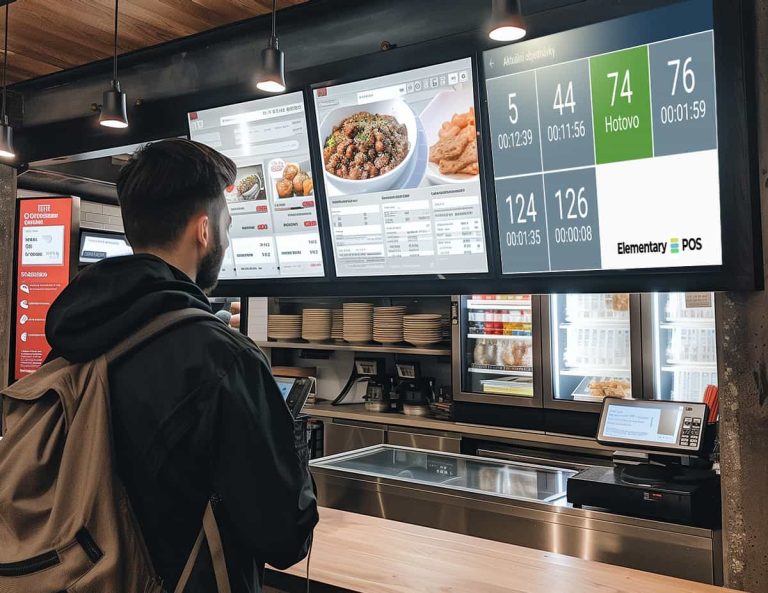
In Elementary POS, you don’t need any expensive equipment. You can turn any Android TV or tablet into a pickup display. The pickup display is a great tool for all entrepreneurs who want to keep their operations under control and make it easier for customers to pick up their orders. This display shows the customer when their order is ready, meaning they no longer have to stand in line and wait. As soon as they see on the display that their order is ready, they can pick it up.
4.8 rating on Google Play
Why use a pickup display in your establishment?
When you have a pickup display, customers know exactly when they can pick up their order. No more waiting in lines and confused looks at the staff! The pickup display will also help you keep order in your operation and facilitate communication between staff and customers.
Better customer service
Customers can see when their order is ready and don't have to ask the staff. Orders are displayed on the display according to status – New order or Ready for pickup. Everything has its own color, so it's clearly differentiated.
Cost savings
Your staff can engage in activities other than calling orders.
Possibility of remote ordering
Take advantage of our other useful, modern feature of "Remote order". Customers don't have to wait in line; they just scan the QR code with their phone, choose what they want, and order. Once the order is ready, the customer will see it on the pickup display and can simply pay and collect.
How does the pickup display work in Elementary POS?
We are continuously improving Elementary POS, bringing you new features and small enhancements to make the app even easier to use. Take a look at these recent updates.
Creating an order
The customer can order at the counter and if you have activated the remote ordering feature, then all the customer needs to do is scan the QR code with the company's offer with their mobile device and order.
Order preparation
New orders are displayed in real time on the order display in the kitchen, at the bar, or wherever it is convenient for you. In the app, you can set which item categories are for the bar and which are for the kitchen. When the customer creates an order, the items are displayed on the relevant order display (e.g., food in the kitchen and drinks at the bar).
How to set up the pickup display?
How to set up the pickup display? Setting up the pickup display is really simple. Follow the steps below and you'll be set up in minutes.
Book a demo
Want to learn more about the Elementary POS system?
Contact us today to discuss how we can help you find a POS solution tailored to your business. You can also call us at +44 330 133 1667
By submitting this form, you give us permission to contact you via phone and email and to send you marketing communications. You can unsubscribe at any time. For more information about our privacy policy, please see our terms and conditions.